Smart Shooter 6

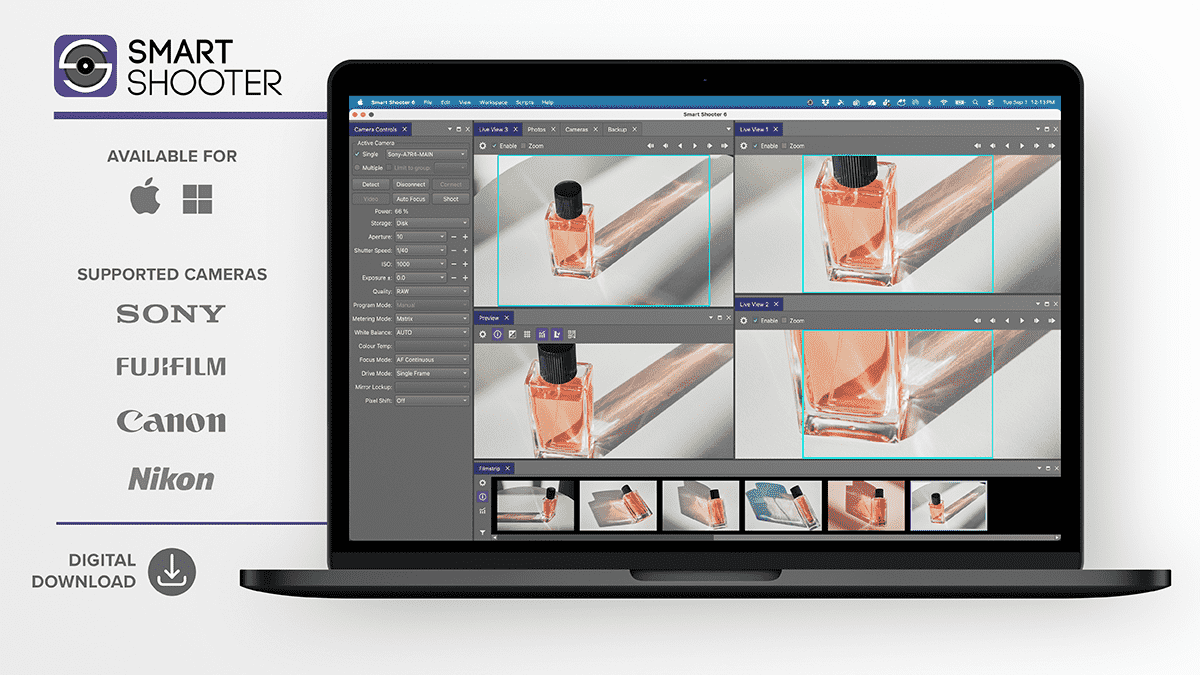
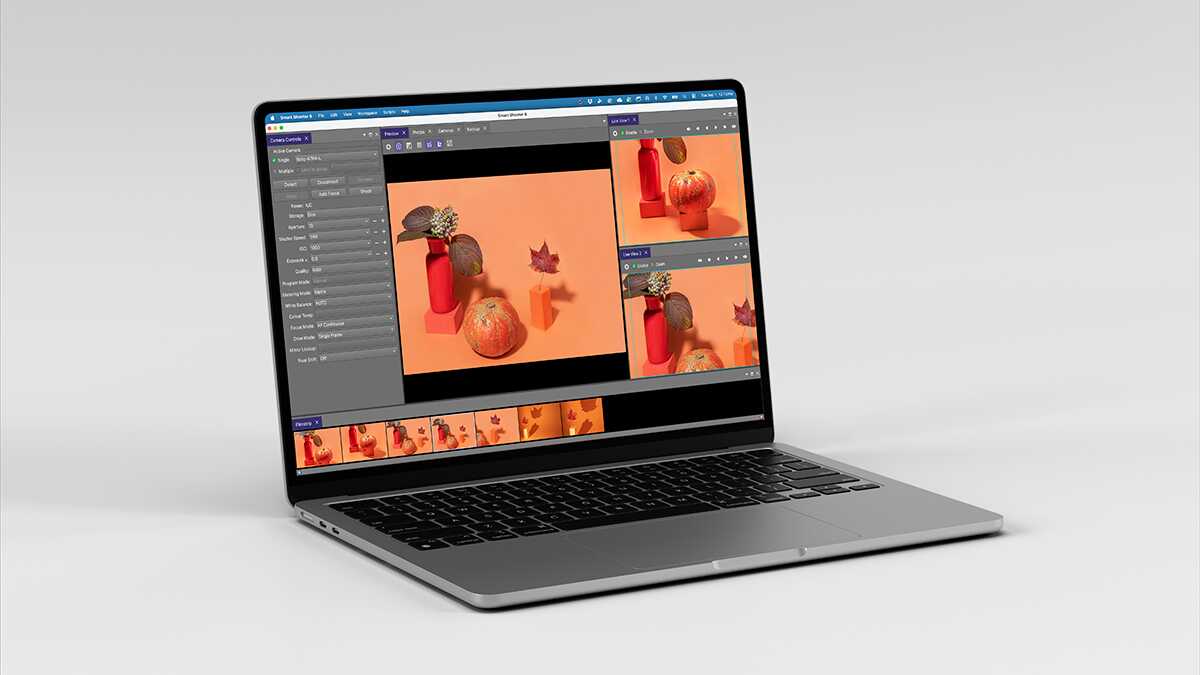
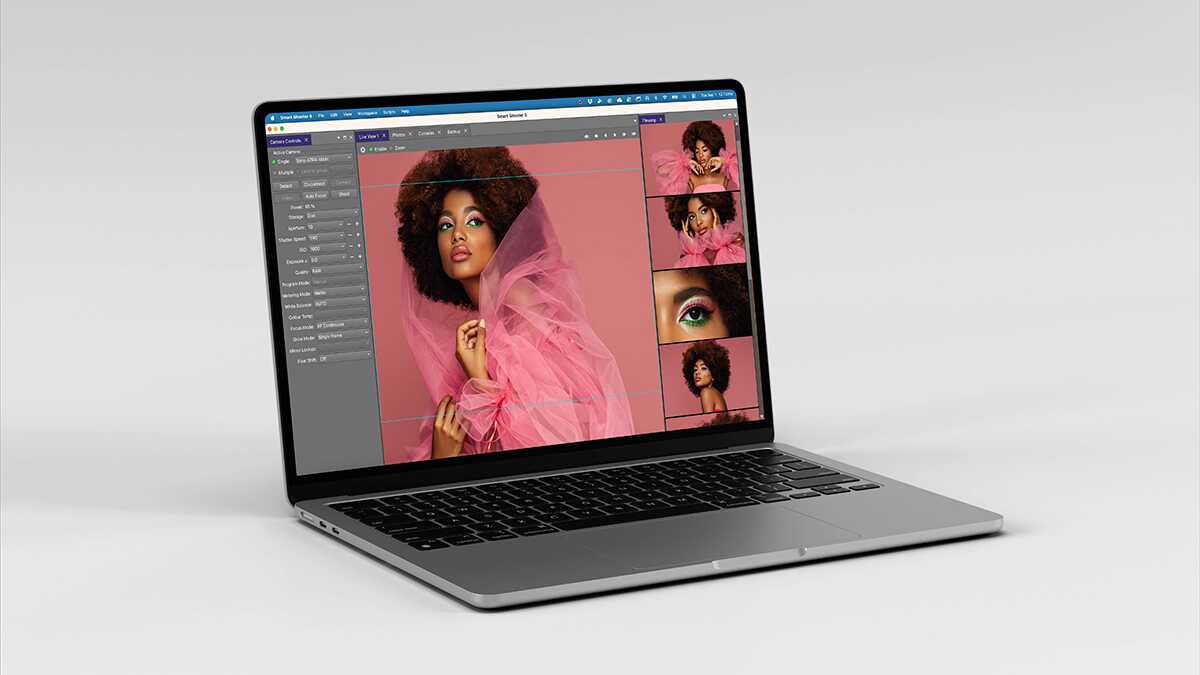
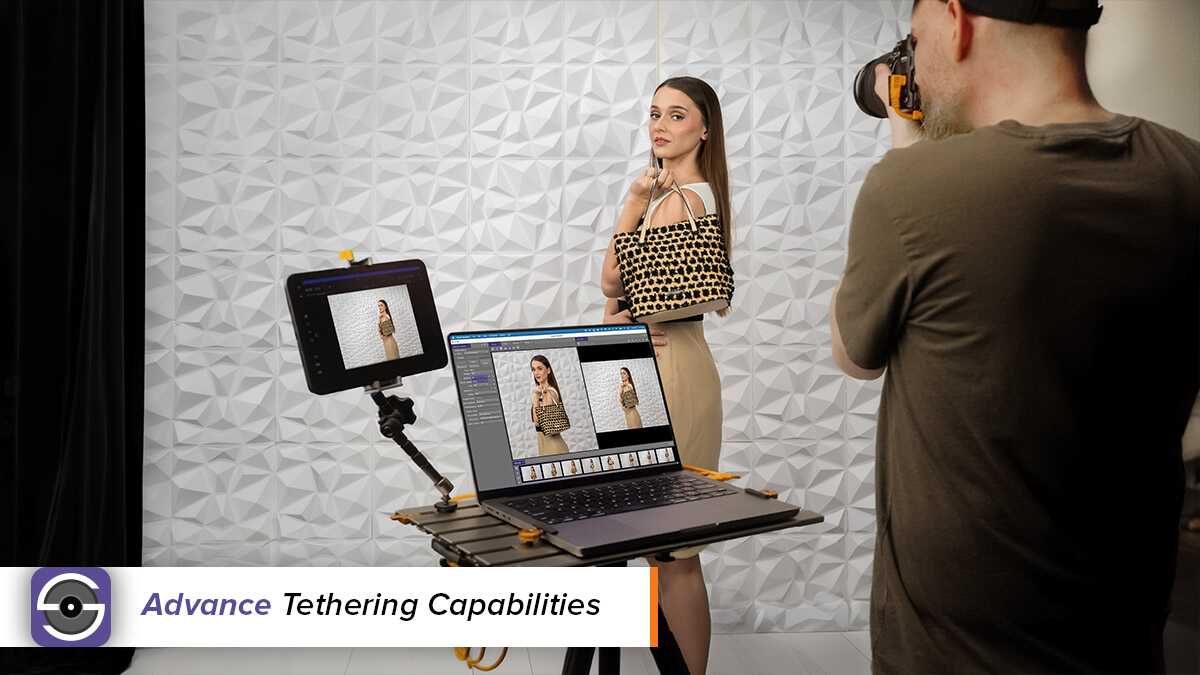
Spend less time managing software and more time creating images with Smart Shooter 6. Built specifically for professional tethered photography, Smart Shooter 6 delivers fast, reliable camera control and image transfer with support for the latest Canon, Nikon, Sony, and Fujifilm cameras. A new Multi-Camera Dashboard, faster image organization with rating, filtering and sorting, persistent sessions, memory card import, and improved performance give photographers, studios, and production teams a powerful tethering workflow—without a monthly subscription.

Using Various Cameras
The default version of Smart Shooter 6 will permit any compatible camera to be tethered at any time. Any compatible camera can be used with the standard license. Additional/Multi-Camera licenses are not required if you intend on using various camera models with Smart Shooter.

Multi-Camera Control
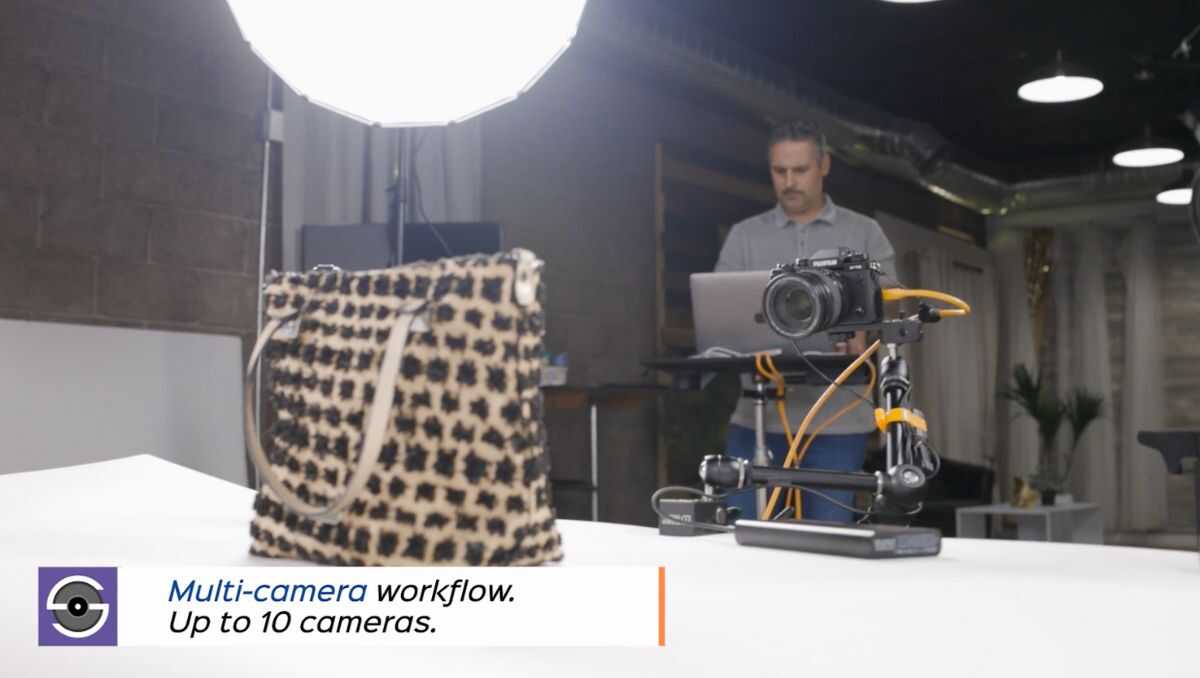
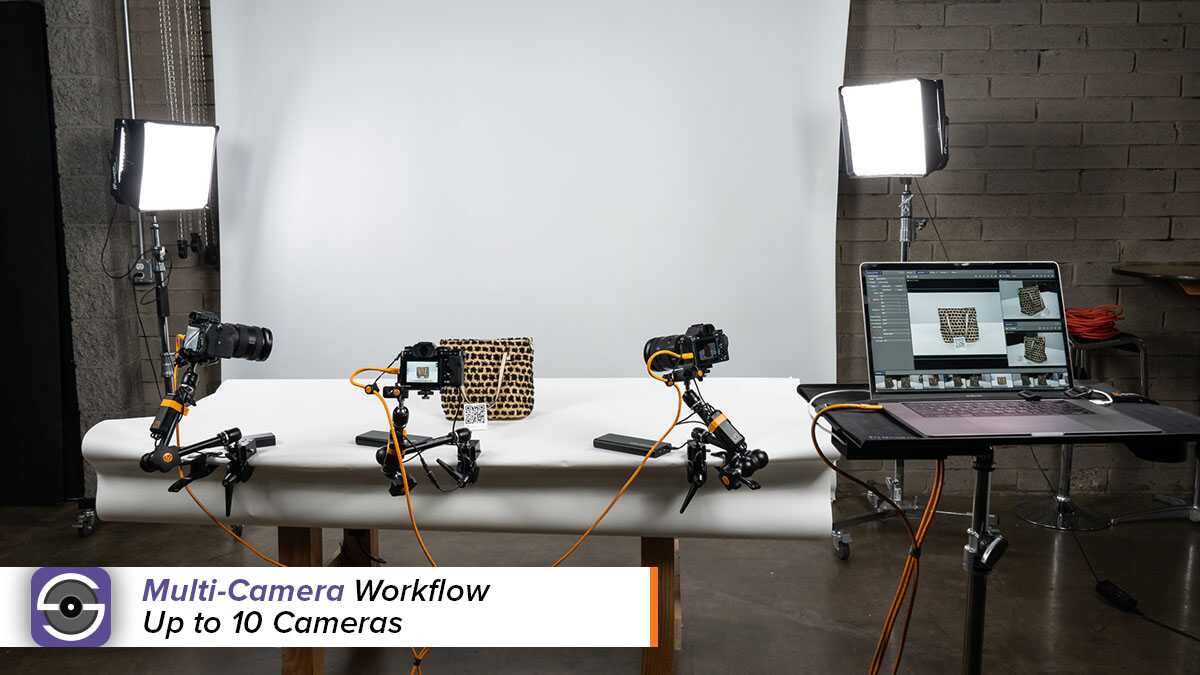
Smart Shooter 6 has a Multi-Camera Capture feature which allows multiple cameras to be tethered simultaneously. This feature requires Add-on Camera Licenses to be purchased if you want to capture and transfer from multiple cameras at the same time. Example: for 4-camera synced capture, add 3 cameras to your license.

Download a Free Trial

NOTE: Digital Download Purchase
*This item is non-cancelable and non-returnable

$149.99

$149.99

Each Smart Shooter 6 license allows up to 10 cameras for simultaneous shooting. Whether you are a product photographer needing multiple angles during a product shoot, 3D modeling, book scanning, catalog work, or other multi-camera shoots. Smart Shooter is the ultimate tool for capturing the perfect angles efficiently.

Select the number of additional cameras needed for your license. ($99/per additional camera)

somdn_product_page

Smart Shooter 6 is professional tethering software built for photographers, studios, and production teams that need a fast, reliable, and feature-rich capture workflow without paying for editing tools they don’t need or committing to recurring subscription fees.

Whether you’re capturing portraits, products, cultural heritage collections, high-volume photography, or complex multi-camera projects, Smart Shooter 6 gives you the tools to control your camera, transfer and review images, and keep your shoot organized from one dedicated tethering application.

Smart Shooter 6 expands compatibility with the latest professional Canon, Nikon, Sony, and Fujifilm cameras while introducing major workflow and performance improvements designed to keep photographers focused on creating—not troubleshooting.

Using Various Cameras
The default version of Smart Shooter 6 will permit any compatible camera to be tethered at any time. Any compatible camera can be used with the standard license. Additional/Multi-Camera licenses are not required if you intend on using various camera models with Smart Shooter.

Multi-Camera Control
Smart Shooter 6 has a Multi-Camera Capture feature which allows multiple cameras to be tethered simultaneously. This feature requires Add-on Camera Licenses to be purchased if you want to capture and transfer from multiple cameras at the same time. Example: for 4-camera synced capture, add 3 cameras to your license. Why Smart Shooter 6?

Reliable. Efficient. Flexible. Affordable.

Why Smart Shooter 6?

Photographers need a tethered workflow they can trust.
Smart Shooter 6 is purpose-built for tethered photography, giving you reliable camera control, fast image transfer, powerful rating, filtering, sorting and organization tools, and advanced multi-camera capabilities without the unnecessary features or recurring costs of a full editing application.

Built for Reliable Tethered Capture
Connect and control compatible cameras directly from your Mac or Windows computer, automatically transfer images as you shoot, review photos on a larger display, and keep your capture workflow moving.

One-Time Purchase. No Subscription.
Get professional tethering software with a one-time purchase and no monthly subscription fees. Add advanced API connectivity or additional Multi-Camera licenses only when your workflow requires them.


Smart Shooter 6 New Features

Smart Shooter Fujifilm Camera Support

Expanded Camera Compatibility

Stay current as your gear changes. Smart Shooter 6 expands support for the latest professional cameras from Canon, Nikon, Sony, and Fujifilm, including newer models at time of release, such as:

  • Canon EOS R1
  • Canon EOS R5 Mark II
  • Nikon Z6 III
  • Sony Alpha 1 II
  • Sony Alpha 9 III
  • Fujifilm X-H2S

See the Compatible Cameras section below for the complete list of supported camera models.

Smart Shooter Lightroom Plugin

Multi-Camera Dashboard

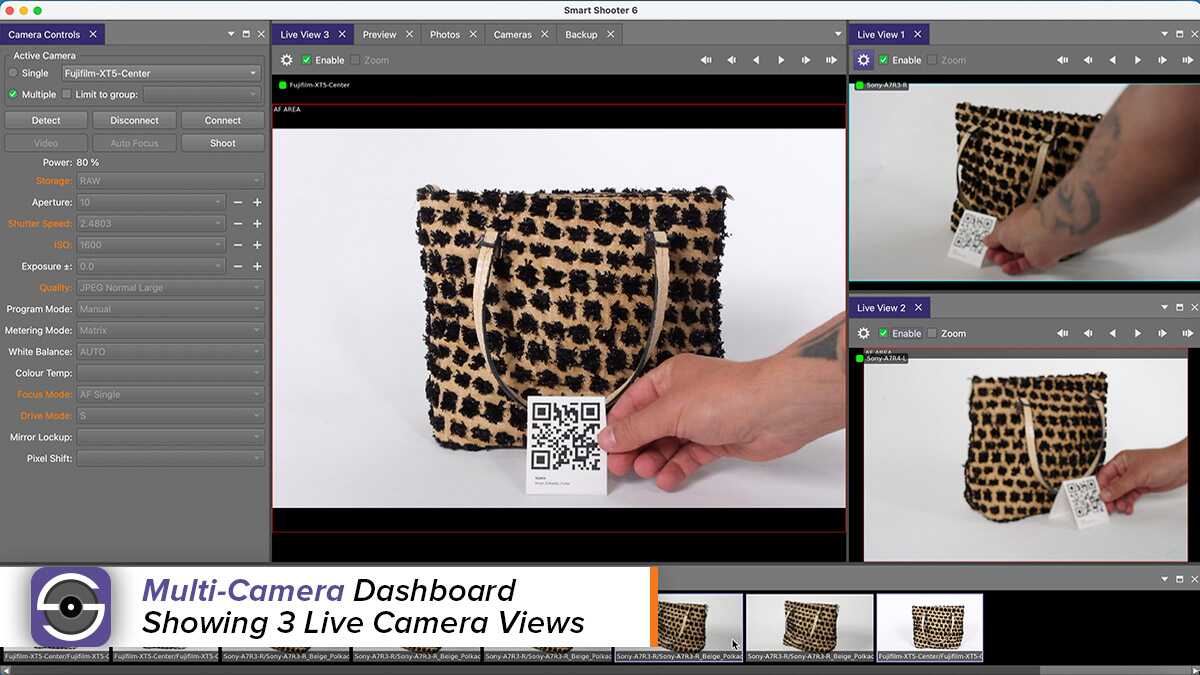
Take control of complex multi-camera shoots with a new Dashboard designed to give you better visibility across multiple connected cameras.

Monitor your cameras from one centralized workspace and streamline multi-camera capture for studio photography, product photography, cultural heritage digitization, production environments, and other advanced workflows.

Additional Multi-Camera licenses are required when capturing and transferring from multiple cameras simultaneously.

Smart Shooter MyWorkspace

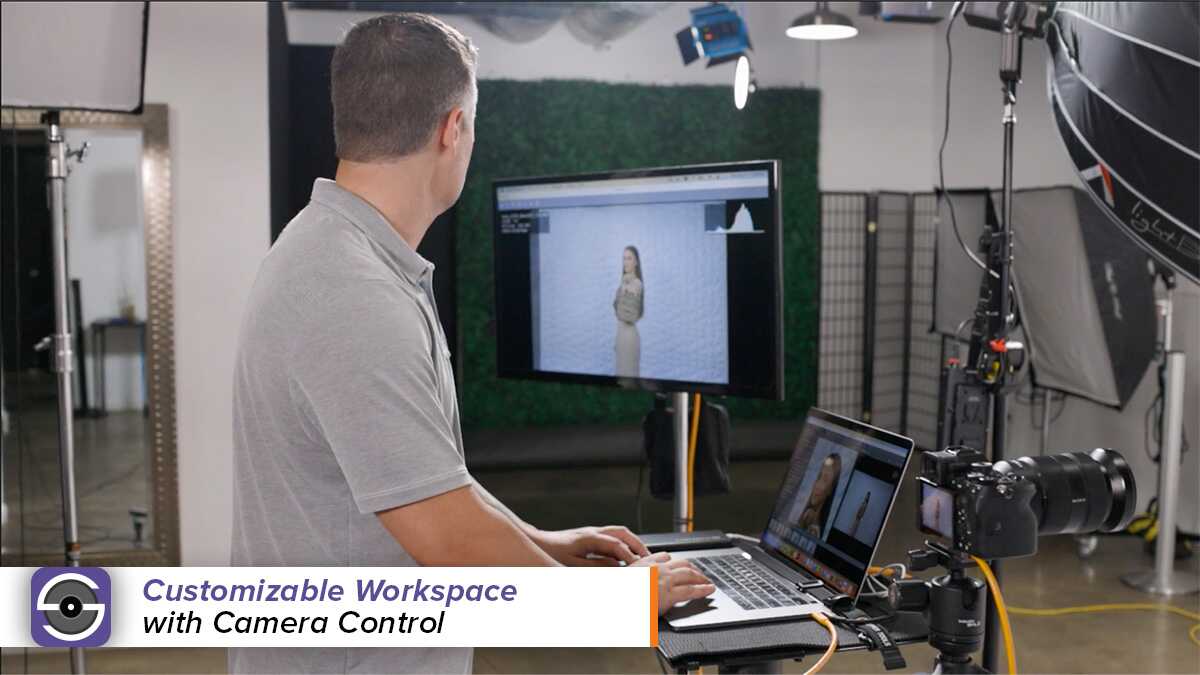
MyWorkspace

Dock windows and save your customized interface to control how your software looks and feels.

Smart Shooter QR Code

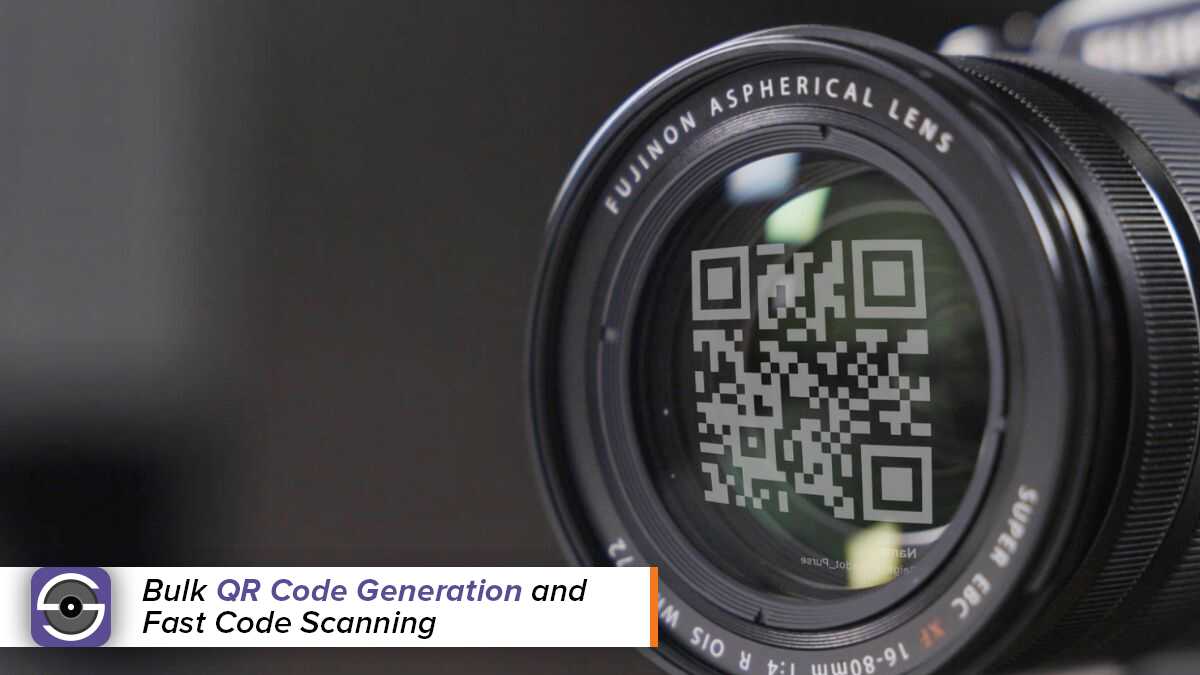
QR/Barcoding

Smart Shooter can scan QR and Barcode data through the lens or via a scanner. The software saves the code info to the image filename and/or to the meta data, making high volume photography a breeze.

Smart Shooter Rate and Review

Smarter Image Review, Organization & Import

Make selects, organize images, and manage your entire shoot faster.

Smart Shooter 6 lets you rate images directly while you shoot and save ratings to EXIF data, helping your selections carry into compatible downstream editing workflows. Import existing images from your camera’s memory card to keep tethered and untethered captures together in one project, while an enhanced Filmstrip, faster thumbnail handling, improved filtering and sorting, Preview tools, and better download management make it easier to navigate even large shoots.

The result is a more organized workflow with less time spent searching and managing files—and more time reviewing, selecting, and shooting.

Smart Shooter SmartSave

SmartSave

SmartSave to multiple locations simultaneously (card, computer, cloud and more) for complete control of file backup.

Optional API Connection

Need Smart Shooter to work as part of a larger production system?

An optional API Connection add-on is available for advanced integrations, allowing Smart Shooter to fit into specialized and customized photography workflows.

Important: API Connection is sold separately from the standard Smart Shooter 6 license.

For more information regarding Smart Shooter’s, features, tips, and tutorials check out the Smart Shooter YouTube Playlist.

Smart Shooter Free 30-Day Trial
Compatible with Mac & Windows OS. Compatible with most professional Canon, Fujifilm, , Sony and Nikon Cameras.

Interested in trying out Smart Shooter 6?

Download it now with a FREE 30-Day Trial.

Installation

For instructions on how to install and uninstall the software, please refer to the Installation Documentation. Windows & Mac.

Release Notes

For information on version updates, please refer to the Release Notes.

EULA

The End User License Agreement is included in the software installer package. EULA Download.

Key Features & Photography Benefits

  • Professional tethered capture for compatible Canon, Nikon, Sony, and Fujifilm cameras
  • Remote camera control and capture from Mac or Windows
  • Automatic image download and preview while shooting tethered
  • New Multi-Camera Dashboard for improved camera monitoring
  • Multi-camera tethering and synchronized capture capabilities
  • Persistent image database that remembers previous sessions
  • Photo ratings with EXIF support
  • Enhanced Filmstrip
  • Image filtering and sorting
  • Import existing images directly from camera memory cards
  • Improved Preview tools
  • Improved photo download management
  • Faster thumbnail caching
  • Improved histogram calculations
  • Better layouts for smaller displays
  • Barcode scanning to filename or EXIF data
  • Live View display
  • Advanced scripting capabilities
  • Optional API Connection for advanced integrations
  • Available in 19 languages
  • One-time software purchase with no monthly subscription
  • Smart Shooter 6 is available for macOS and Windows and supports 19 languages.

Built for the Way You Shoot

Portrait & High-Volume Photography

Capture, identify, organize, rate, and review images more efficiently while keeping the photographer and team focused on the subject.

Product & Studio Photography

Control your camera from the computer, evaluate images on a larger display, and build a consistent workflow for repeatable studio capture.

Multi-Camera Production

Monitor multiple cameras from the new Multi-Camera Dashboard and expand your setup with additional camera licenses as your production needs grow.

Cultural Heritage & Digitization

Combine reliable tethered capture, barcode workflows, multi-camera capabilities, and advanced integration options for demanding image-production environments.


Using Various Cameras

The standard Smart Shooter 6 license allows you to tether one compatible camera at a time. You can use different compatible camera brands and models with your Smart Shooter 6 license; you do not need to purchase an additional license simply because you switch between cameras.

Additional Multi-Camera licenses are only needed when you want to connect, capture, and transfer images from multiple cameras simultaneously.


Multi-Camera Control

Smart Shooter 6 is built for professional multi-camera workflows. If your setup requires multiple cameras to be connected and used simultaneously, additional Multi-Camera licenses can be added based on the number of cameras required.

For example, a four-camera simultaneous capture workflow would require the standard Smart Shooter 6 license plus the appropriate additional camera licenses.

Buy only the functionality your workflow needs.

For more information regarding Smart Shooter’s features, tips, and tutorials check out the Smart Shooter YouTube Playlist.

Smart Shooter

Smart Shooter licenses are for one person and may be activated on up to 3 Mac or PC computers at one time. A separate license is required for each user.

Some users who are running MacOS 13 – Ventura may experience issues with the camera not
being properly recognized within Smart Shooter 4. While we generally recommend quitting all
other software while tethering, including software running in the background, there is a specific
software conflict on some systems that can cause connection problems on MacOS 13 – Ventura.
Cloud-Syncing software like Google Drive and Dropbox has been found to block the connection
to the camera on some systems running MacOS 13 – Ventura. Therefore, please Quit Dropbox
and Google Drive from the menu bar
in order to prevent this conflict from occurring. Once
both pieces of software are quit, we expect no issues with compatible camera connections on
MacOS 13 – Ventura.
Please note that both Google Drive and Dropbox may be set up to launch automatically upon
login, which may result in an ongoing software conflict. Therefore, we would recommend
removing this software from the Login Items (System Settings → Login Items) and/or diligently
checking the menu bar for either software before starting each tethering session.

By default, the Sony Imaging Edge software utilizes a customer driver that is not compatible with other software.  In order for the camera to be used with other software, you will need to change the driver that Windows is using with the camera connection.  To do this, please follow these steps. 

  1. Connect the camera via cable and then power on the camera
  2. Open the Windows Device Manager (use Windows search option)
  3.  Turn down libusbK Usb Devices category.  The camera will be listed as Sony Remote Control Camera.
  4. Right click on Sony Remote Control Camera and select Update Driver.
  5.  In the new window select Browse my computer for drivers.
  6.  In the next screen, select Let me pick from a list of available drivers on my computer.
  7.  In the next screen, select the MTP USB Device option and select Next.
  8. Once the update has completed, you can close the window.  You should also hear a chime indicating Windows has recognized a new connected device.
  9. The camera will be listed under Portable Devices.  At this point, Smart Shooter 4 will be able to connect to the camera

Please Note: switching to the MTP driver will make the Camera inaccessible in the Sony Imaging Edge Software, so the process will need to be reversed for the camera to again be available in the Imaging Edge software.

In some situations, the Operating System might inadvertently shut down the connection between Smart Shooter 4 and Lightroom. If you have successfully installed the Smart Shooter 4 Lightroom Plug-In and are finding that your images are showing up normally in Smart Shooter 4, but not transferring into Lightroom even though you have an active tethering session, it may be necessary to reset the connection.

The following process will force Smart Shooter 4 to create the network socket connection to the plug-in:

  • 1. Quit Lightroom
  • 2. Open Smart Shooter 4 Preferences
  • 3. Go to Lightroom tab
  • 4. Disable checkbox for “Enable Lightroom Tethering Connection”
  • 5. Click “Apply”
  • 6. Enable that checkbox again and click Apply
  • 7. Open Lightroom and begin a new tethering session

The focus stacking script relies on Smart Shooter’s ability to move focus during live view.  Sony cameras do not support this feature at this time.  Only Canon and Nikon cameras can be used with the Focus Stacking Script.

For most current Sony models, when tethering, it’s not possible to save to card. Some recent Sony models, such as the A7R4 and A6400, the camera does allow you to save to card.  The user has to enable this on the camera menu itself.  However, when this is enabled, the tethering app does not get notified of the new photos, so no preview is available in app.

Photos: When the camera takes a photo, it stores orientation in the EXIF data. When Smart Shooter loads or views the photo, it extracts this orientation information and uses it to auto-rotate the photo on screen. If a photo is not rotated correctly by Smart Shooter, it is most likely because the camera did not put the orientation in the EXIF data. For example on some Nikon cameras, the camera has a menu setting to enable/disable this called “Auto Image Rotation”. Live view: When Smart Shooter gets the live view image from the camera, this image does not have orientation information. So, Smart Shooter does not know what orientation to display the live view as. To get around this, Smart Shooter allows you to set the orientation for each camera you use. Then Smart Shooter shows a live view image from that camera, it will apply that rotation to it. To set this:
  1. Go to the “Cameras” tab
  2. Select and right-click the camera
  3. In the popup menu, select “Set Orientation”
Note: this camera orientation gets saved (along with camera name). So if you close and start the app again, it will still be set to that same orientation. If you physically go and re-position your camera, you then need to do “Set Orientation” again in the app to match it.
Smart Shooter is dependent on Microsoft .NET 4. This is supposed to be installed by default on all Windows computers, but sometimes is missing. If the application crashes during start up, this may be the cause. So if you see a crash like this, please download/install Microsoft .NET 4 from the Microsoft’s website: https://www.microsoft.com/en-us/download/details.aspx?id=17718
If you are using Windows and encounter a hang with Smart Shooter, its very useful to send us the process dump from Task Manager, as this contains extra information about exactly why the application is stuck. First, start Task Manager. There are several ways of doing this:
  • On the keyboard, press the CTRL + LEFTSHIFT + ESC keys
  • On the keyboard, press the CTRL + ALT + DELETE keys to show the lock screen, and then click the “Start Task Manager” button
  • With the mouse, right-click the task bar and select “Start Task Manager“
On Window 10, the Task Manager may initially look like this: If so, click “More details” at the bottom. The Task Manager window should now look like this: To start the process dump, find “Smart Shooter 3” in the list of processes, and then right-click it to bring up the context menu, which looks like this: In the context menu, select “Create dump file“. Once the process dump has been completed, the following acknowledge window will be presented. This also shows where the process dump file was saved, in this case to the file: C:\Users\francis\AppData\Local\Temp\SmartShooter3.DMP Once you have this process dump file, you can send it to us at the usual address support@tethertools.com. The file itself may be very large in size. If so, we can provide a place for you to upload the file to us.
Smart Shooter exposes an option for controlling where the photos are saved to, which is named Photo Download Directory. However if Smart Shooter has been purchased and downloaded from the Apple Mac App Store, then this option is disabled. This means that the Photo Download Directory cannot be changed. To get an app accepted on the Apple app store, it has to confirm to a set or requirements from Apple. One of these requirements imposes restrictions on the location where an app can read and write files. Effectively this restriction means that Smart Shooter can only save photos to the user’s “Pictures” folder. This is why the option to change this is disabled in Smart Shooter. If you have purchased from the Apple app store, but need to customise this option, then please contact us at support@tethertools.com. We can then allocate you a license, allowing you to download and use the version of Smart Shooter from our website, which does not have this restriction.
If you are using Mac OS X and encounter a crash with Smart Shooter, its very useful to send us the diagnostic report from Mac OS X, as this contains extra information about exactly why the application crashed.

If the application crashes, Mac OS X will prompt you with the following message:

Click the “Report…“ button, and then the following “Problem Report” window is presented:

Then click the “Show Details” button, and the window is expanded to show full diagnostic information of the crash:

This is the information that you need to email to Support.

Select all the text in the “Problem Details and System Configuration” section, and then copy/paste it into an email and send it to us at the usual address support@tethertools.com.
One of the camera settings in Smart Shooter is for the camera’s program mode. As with other camera settings, the UI that the app presents is driven by information from the camera. The app will query the camera for each camera setting, to get the valid range of values, and whether or not each particular camera setting can be changed. For Program Mode, most cameras do not allow you to change this from software, hence why the app will disable the dropdown menu. This is usually because the Program Mode is a physical dial switch on the camera, so the only way to change it is to physically rotate that dial. Exceptions to this are the higher end cameras, such as Nikon D810, which do not have a dial on the camera but instead an electronic button. So for such cameras, Smart Shooter does allow you to change Program Mode in the app.
When Smart Shooter saves a new photo, it is able to dynamically generate the filename differently for each new photo. The way each new filename is generated can be controlled by an option called the ‘Filename expression’. This is located in the Options window, under the ‘Naming Policy’ tab. For detailed information on how to customise this, please visit the documentation at:
https://ssdocs.tethertools.com/user_guide-dev.html#a-file
When shooting in RAW + JPEG mode, its possible for Smart Shooter to only automatically download the JPEG images. This is done by setting the camera’s Storage mode to JPEG. For more information, read through the documentation here: https://ssdocs.tethertools.com/photo_download.html
When a new photo is taken, the location where it is stored is controlled by the ‘Storage’ camera setting. For more information on how this works, please refer to the documentation here: https://ssdocs.tethertools.com/photo_download.html
Smart Shooter does allow multiple cameras to be triggered with a single button click. However when triggering cameras this way, it introduces a delay of at least 150 milliseconds between each camera. This delay is unavoidable when triggering a camera over the USB connection, as the software has to communicate with each camera in sequence. So to trigger multiple cameras simultaneously, they need to be triggered by a different mechanism. This is possible using a dedicated cable release connected directly to each camera, or alternatively some kind of remote trigger. One such provider of camera triggering systems is Esper, with their product called TriggerBox https://www.esperhq.com/product/multi-camera-triggerbox/ Or alternatively Pocket Wizards also provide various products for triggering cameras, see: https://www.pocketwizard.com Of course, at the same time, the cameras can still be connected via USB to the computer, so that Smart Shooter can automatically download any new photos, and camera settings can be managed from a single place.
The computer’s USB system is the limiting factor for this, as each additional camera will use extra bandwidth and require extra CPU processing to maintain the connection. Normally between 20 to 30 cameras can be connected to a single computer. The Smart Shooter software does not impose a limit on the number of cameras, but with more than this the USB connection reliability becomes an issue. When connecting multiple cameras, try to use good quality powered USB hubs and cables. Also experiment with connecting to different USB ports on the computer itself as these can vary in performance. If the computer’s own USB ports are supected to be the limiting factor, then try installing a dedicated USB PCIExpress card into the computer. If you are unable to connect all the cameras to a single computer, then you need to use multiple computers and split the cameras between then. Smart Shooter GRID can then be used to coordinate and control the cameras across multiple computers.
Smart Shooter is dependent on the Microsoft WPD package (Windows Portable Devices). This comes as standard on most version of Windows 7 and above, except for special ‘N’ and ‘KN’ versions of Windows:
  • Windows 7 N and Windows 7 KN
  • Windows 8 N and Windows 8 KN
  • Windows 8.1 N and Windows 8.1 KN
  • Windows 10 N and Windows 10 KN
So to use Smart Shooter on this version of windows, the package needs to be installed manually. It can be downloaded from the Microsoft website here: Media Feature Pack for Windows 7 N with Service Pack 1 and Windows 7 KN with Service Pack 1 (KB968211)
https://www.microsoft.com/en-us/download/details.aspx?id=16546
Media Feature Pack for N and KN versions of Windows 8
 
 
Media Feature Pack for Windows 8.1 N and Windows 8.1 KN Editions
 
Media Feature Pack for N and KN versions of Windows 10
https://www.microsoft.com/en-us/download/details.aspx?id=48231
The version is shown in the ‘About Smart Shooter’ window.   To show this menu, click ‘Help’ in the top menu bar and then click ‘About Smart Shooter …’:
For this to be possible, the lens or camera body has to be able to electronically change focus (ie. have an autofocus option). If the lens focus can only be controlled manually, then there is no physical way for the computer to turn the lens! It needs the focus drive motor either built into the lens or on the camera body. Secondly the camera needs to support live view, which allows the computer to then control the focus motor. You can check the list of supported cameras to see if you camera supports live view. Once live view is enabled, then Smart Shooter is able to directly control the focus motor. For an autofocus lens, check that it is set to auto and not manual mode, otherwise the drive motor may be inactive. Having live view enabled is the only way that you can manually change the focus. There is a separate option to tell the camera to do its normal auto focus procedure, which can be done during both normal and live view operation. Smart Shooter has a button named ‘Auto Focus’ which triggers this.
f you need to report a problem about Smart Shooter, its very useful to send us the log files from the application, as these contains diagnostic information about how the software and cameras are behaving. There are two methods to do this.

Manually sending as an email attachment

This is the preferred method. Here you need to manually locate the log files, so that you can attach them to an email and send it to the usual address support@tethertools.com. There is a menu option in the application to help you with this:   On Windows the log files will be somewhere like:
C:\Users\username\AppData\Roaming\Smart Shooter 4\smartshooter4_log.txt C:\Users\username\AppData\Roaming\Smart Shooter 4\smartshooter4_prevlog.txt
On Mac the log file will be somewhere like:
/Users/username/Library/Application Support/Smart Shooter 4/smartshooter4_log.txt /Users/username/Library/Application Support/Smart Shooter 4/smartshooter4_prevlog.txt
First check the list of supported cameras here: https://tethertools.com/product/smart-shooter-4/#compatibility If you camera is supported, then check the following:
  • Try using a different USB cable to connect, and plug it in to a different USB port on the computer. If you are plugging the USB cable into an external USB hub, instead try connecting it directly to USB port on the computer.
  • Make sure the camera battery is charged up.
  • Try removing the memory card before connecting the camera. If the memory card has many photos, sometimes the computer will stay busy scanning them when you connect it, which delays Smart Shooter from being able to communicate with the camera.
  • Is there any other software running that may try and communicate with the camera? Such as Lightroom (which may try to import photos) or even Nikon or Canon software?
  • If you are using a dedicated external camera trigger (cable release or similar), try removing this. Such triggers can interfere with the connection if they are not working correctly.
  • If your camera supports WIFI, try disabling this as it may interfere with the USB connection.
  • Some older cameras have their own menu option for USB mode, such as the Nikon D300, which may be set to ‘PTP’, ‘Mass Storage’, PC Connection’. Try changing this setting and reconnecting.

Compatible Cameras:

Smart Shooter 6 supports compatible professional cameras from Canon, Nikon, Sony, and Fujifilm, including support for the latest generation of camera bodies.